Your account
What it is for: Your account holds settings for you as a person, not for the organization: e-mail, language and theme, password, two-step sign-in and signed-in devices.
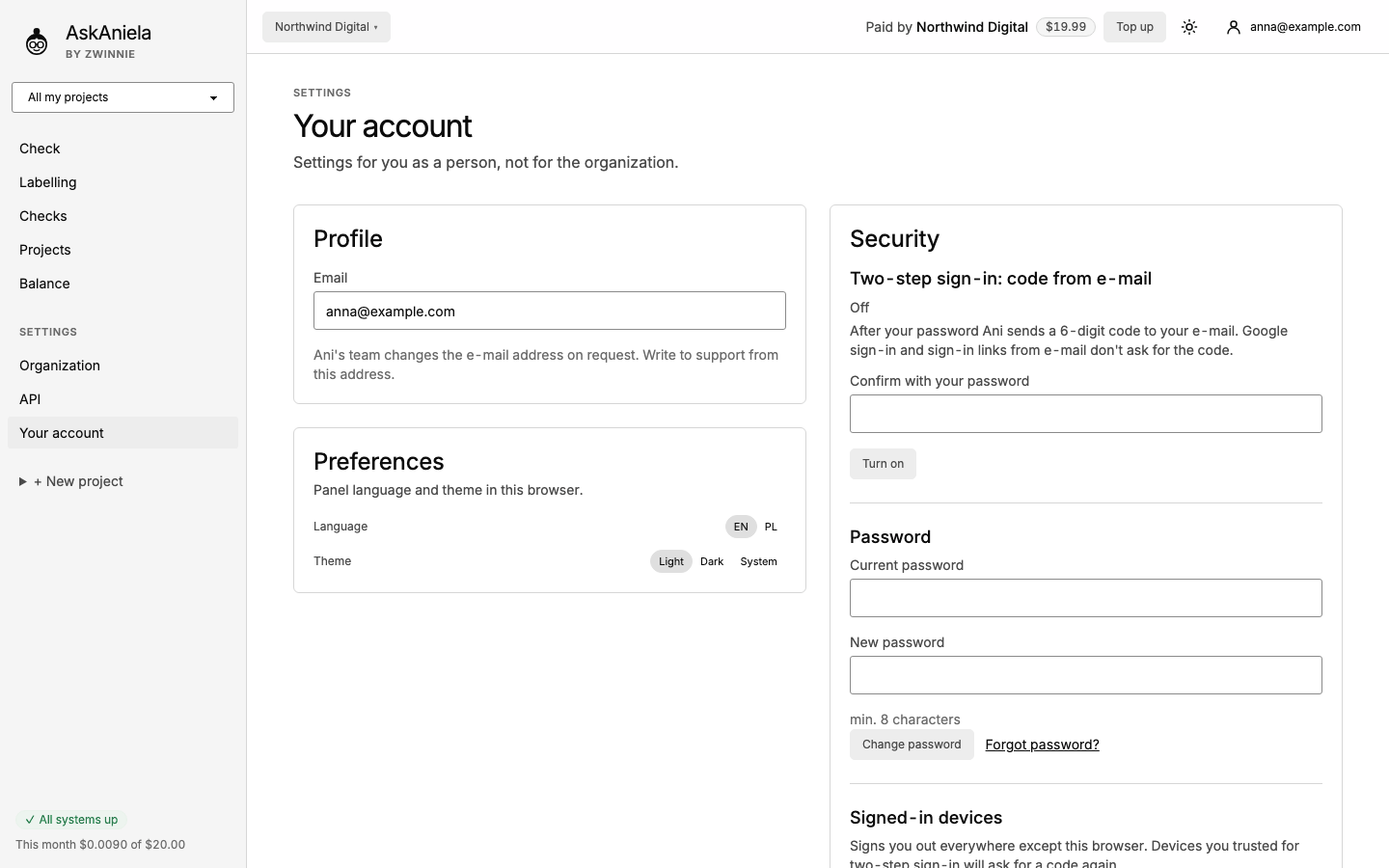
Language and theme
- Click Your account in the sidebar (or the account menu at the top right).
- In Preferences pick EN or PL and the theme Light, Dark or System.
The same switches are in the account menu and, on a phone, at the bottom of the side menu.
Password and devices
- Password - enter the current and the new password (at least 8 characters) and click Change password.
- Signed-in devices - Sign out on all other devices ends every session except this browser.
Two-step sign-in
After your password Ani asks for a second step. You can use:
- Code from e-mail - turn it on with your password; Ani sends a 6-digit code at each sign-in;
- Security keys - a hardware key or a passkey, the safest option;
- Authenticator app - a new code every 30 seconds;
- Backup codes - each one signs you in once when you do not have your key or phone.
Before you add or remove a key, the app or backup codes, confirm it is you with your password or a code from e-mail.
Common questions
How do I change my e-mail address? Write to support from your current address; the team changes it on request.
Does Google sign-in ask for the e-mail code? No. Google sign-in and sign-in links from e-mail do not ask for it.
I lost my security key. Use a backup code or another method. If none works, contact support.